# Zeus

# Using Zeus with MyNode

First, install Zeus on your mobile device.

Next open the app, go to settings and tap "Add a new node".
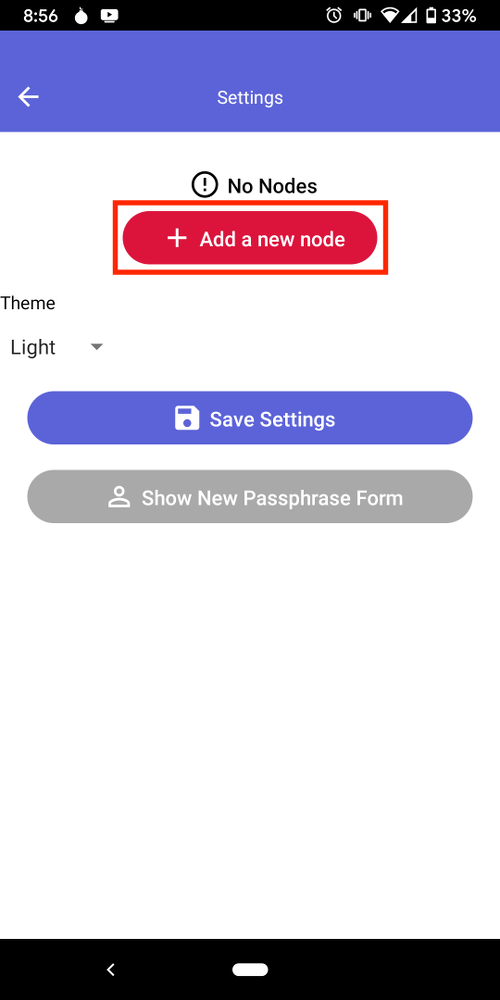
Zeus settings screen reading No Nodes with the Add a new node button highlighted

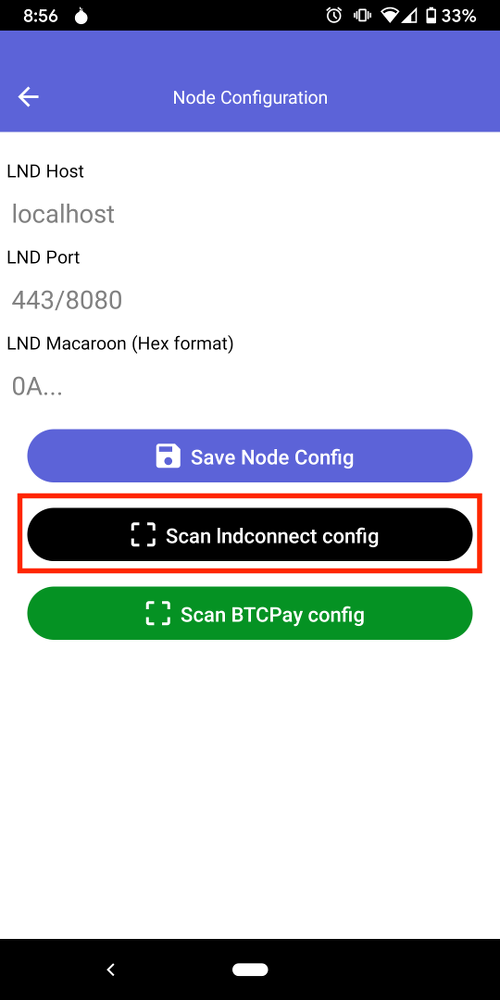
Tap on "Scan lndconnect config".

Zeus Node Configuration screen with host, port, and macaroon fields and the Scan lndconnect config button highlighted

Open the QR Pairing page on MyNode and scan the QR Code from the "REST Local IP" tab.
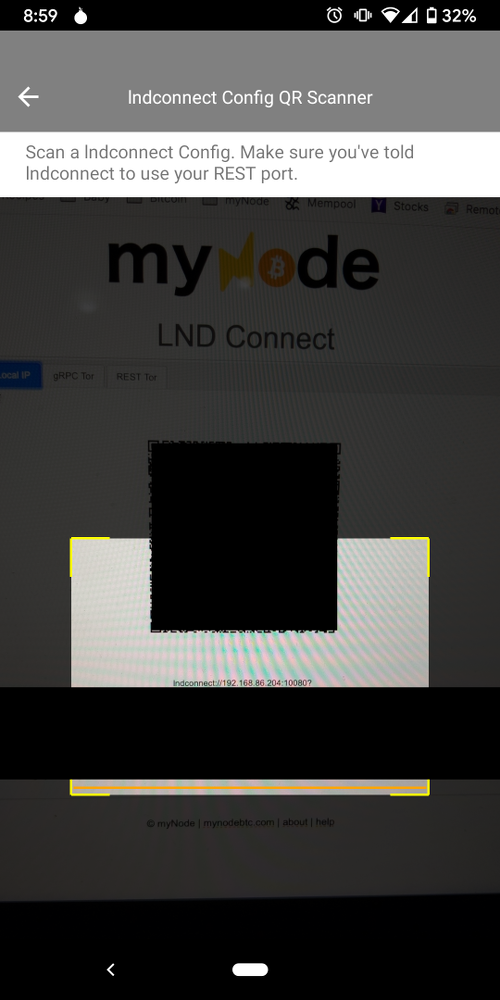
Zeus lndconnect QR scanner pointed at the LND Connect page on MyNode

Once the QR code is scanned, click "Save Node Config" and go back to the main app screen. Zeus is now using your MyNode device!
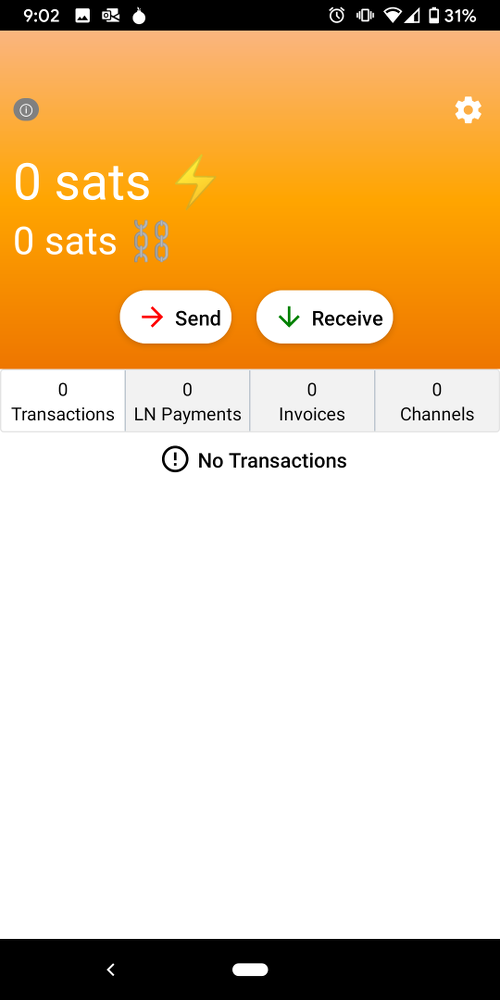
Zeus main screen connected to MyNode, showing Lightning and on-chain balances with Send and Receive buttons and counts of transactions, payments, invoices, and channels