
# Lightning Terminal
Lightning Terminal is a tool made by Lightning Labs to control Loop and Pool via a convenient web interface.
# Opening Lightning Terminal
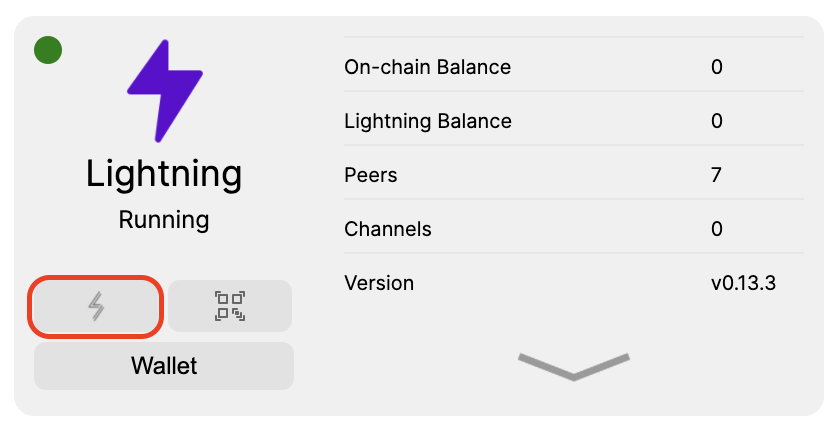
Lightning Terminal can be opened via the Lightning icon under the Lightning tile on the homepage or via the Lightning Terminal "open" button on the Lightning page.
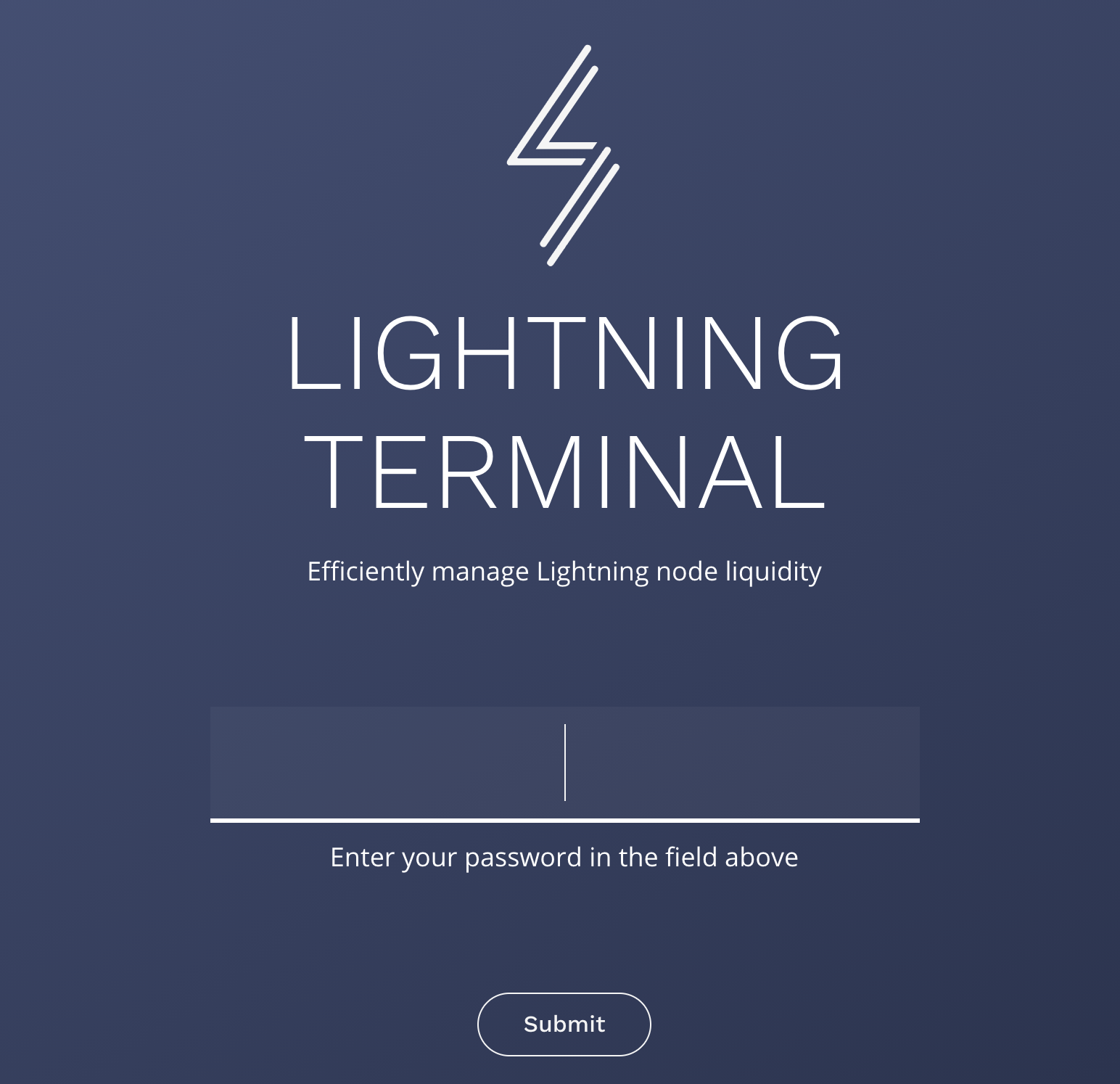
After opening the app, you will be prompted for a password.
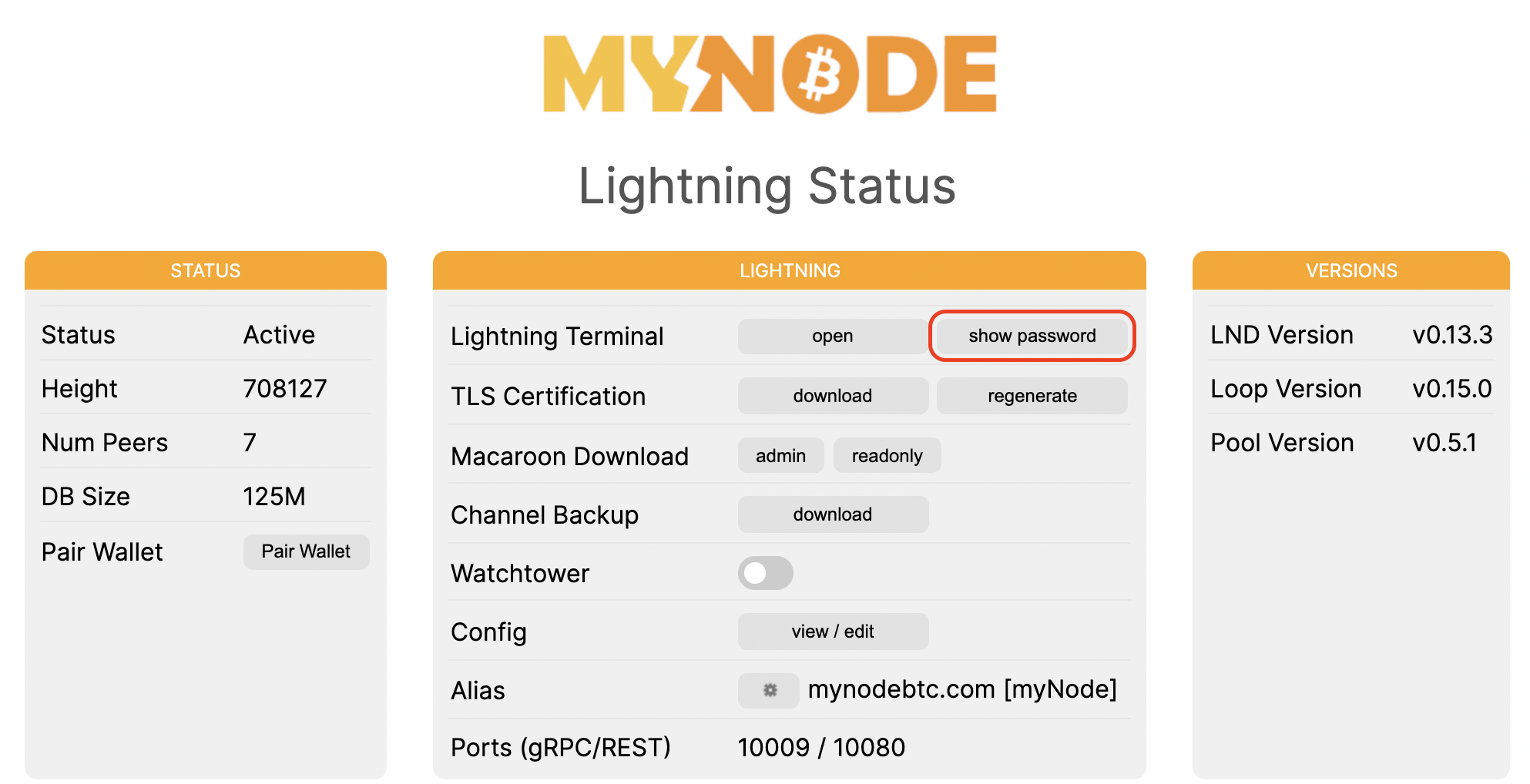
This is NOT your MyNode password. To increase security, MyNode has generated a random password that can be found on the Lightning page. To see the password, click "show password" next to the Lightning Terminal label. You can easily copy it via the copy icon next to the password.
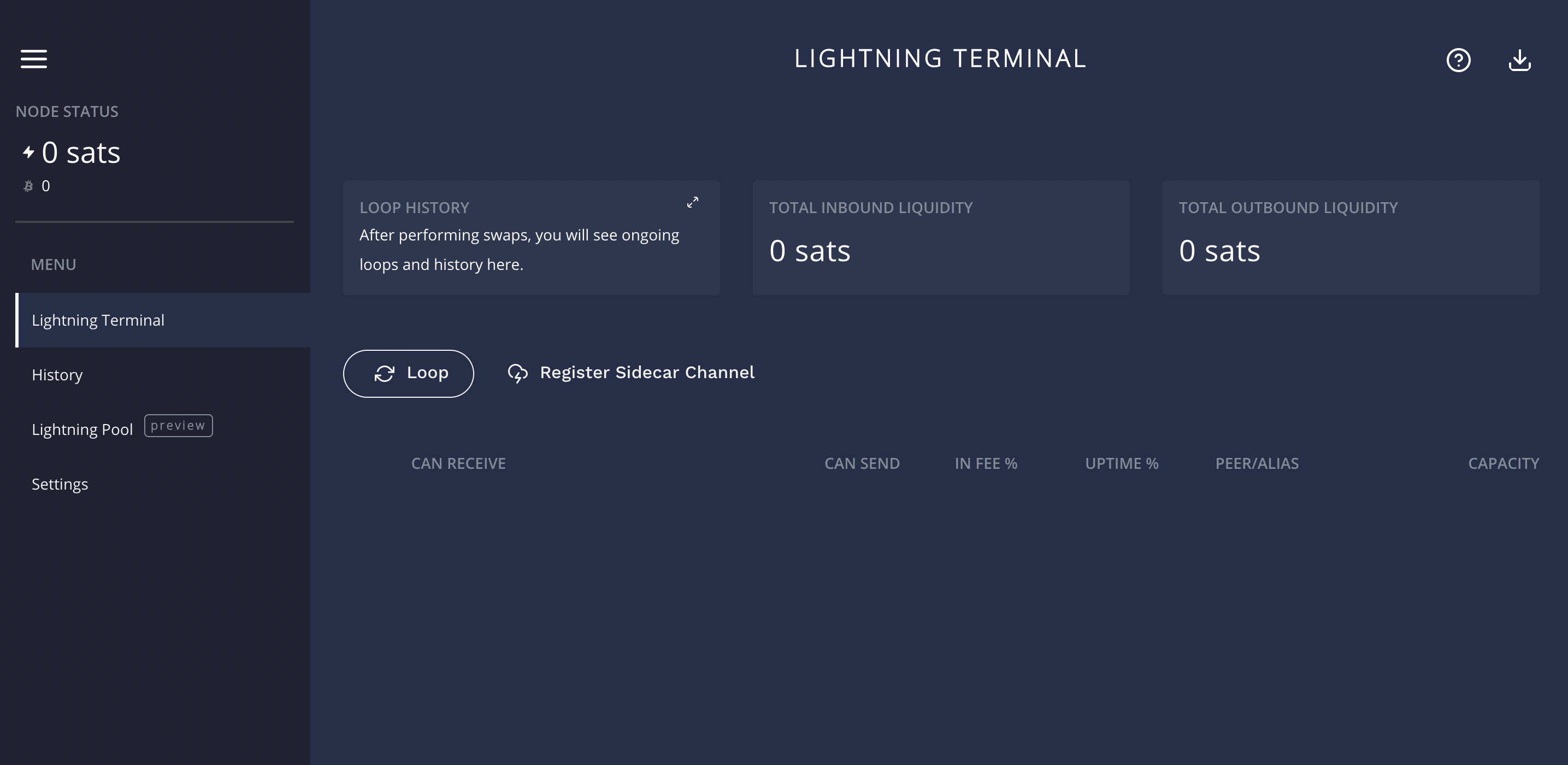
After logging in, you will see a screen similar to this. It allows easy control over Lightning Loop and Pool.
← Pairing Wallets Alby →