
# Zap
# Using Zap with MyNode (Desktop)
First, install Zap on your PC.
Next, open the Zap desktop app, click on "Create New Wallet".
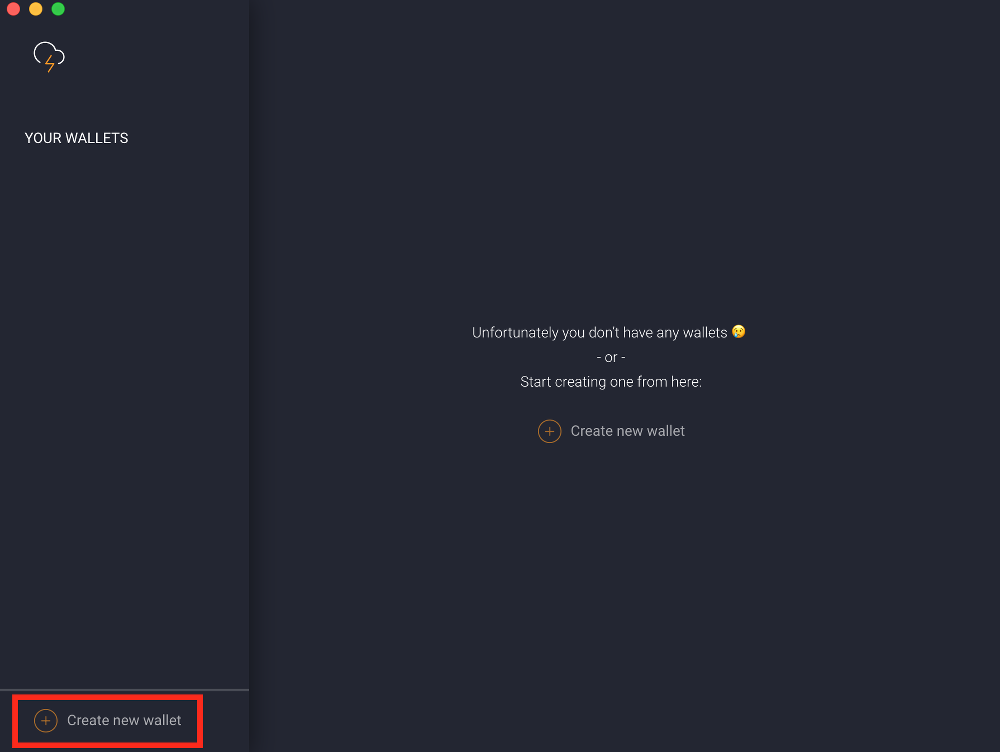
Select "Connect" and click Next. Now, open the MyNode GUI and go to the LND Connect page. Copy the LND Connect URL from the "gRPC Local IP" tab. Paste the URL into the Connection String box in Zap.
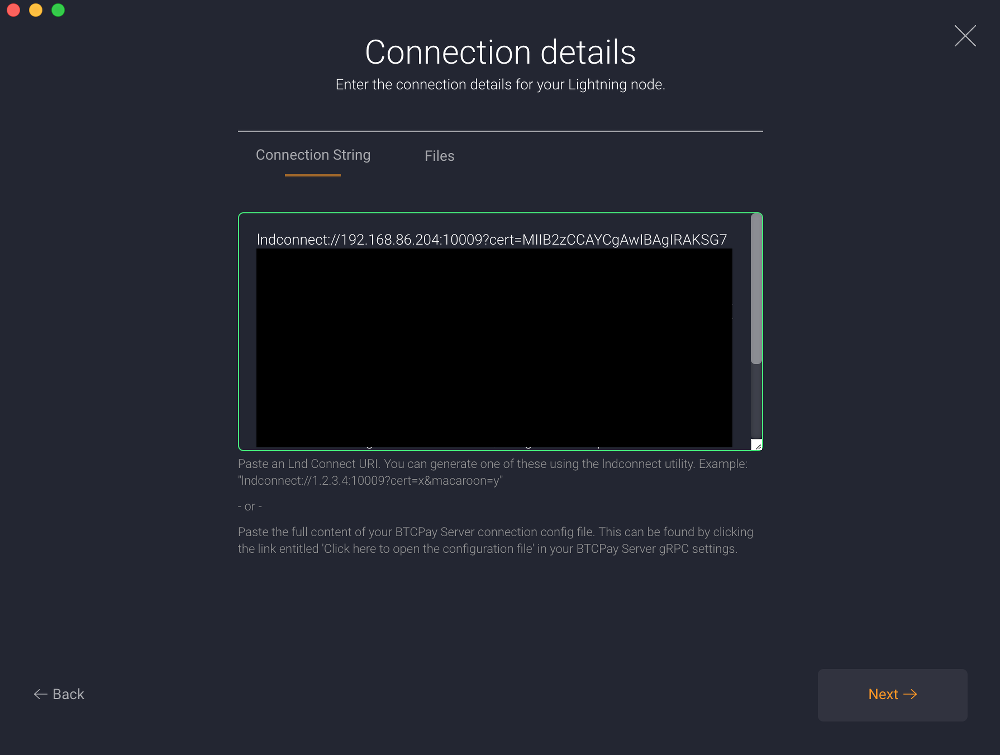
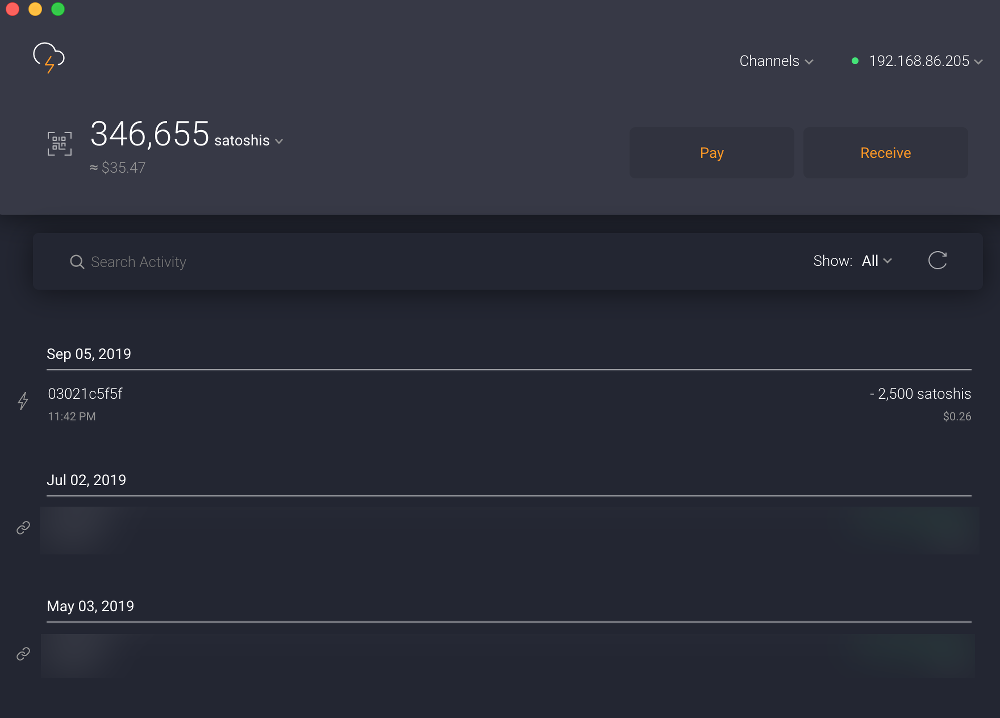
Click Next and click Next on the Confirm screen. Zap will connect and use your MyNode device's wallet!
# Using Zap with MyNode (Android)
First, install Zap on your mobile device.
Next, open the Zap mobile app and tap on "Connect to Remote Node".
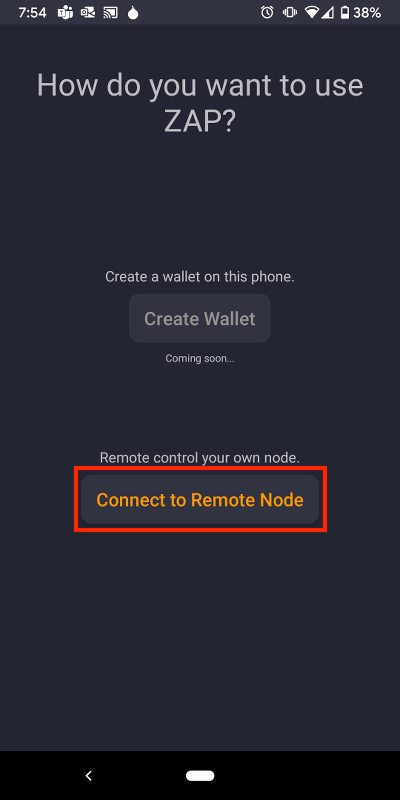
In your the MyNode GUI, open the LND Connect page and enter your MyNode password. In the Zap app, scan the QR code in the "gRPC Local IP" tab.
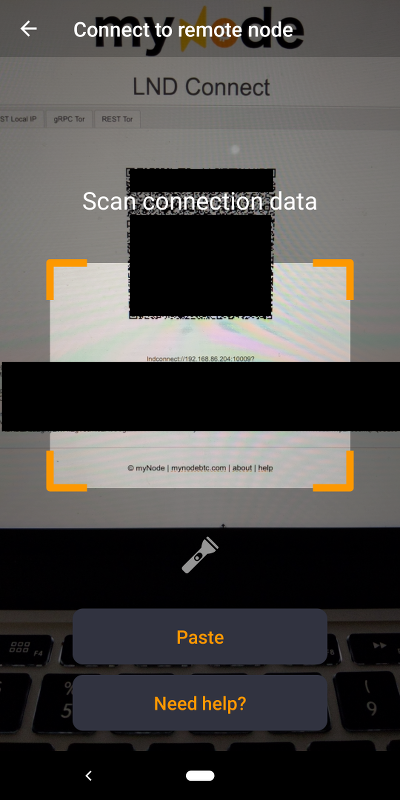
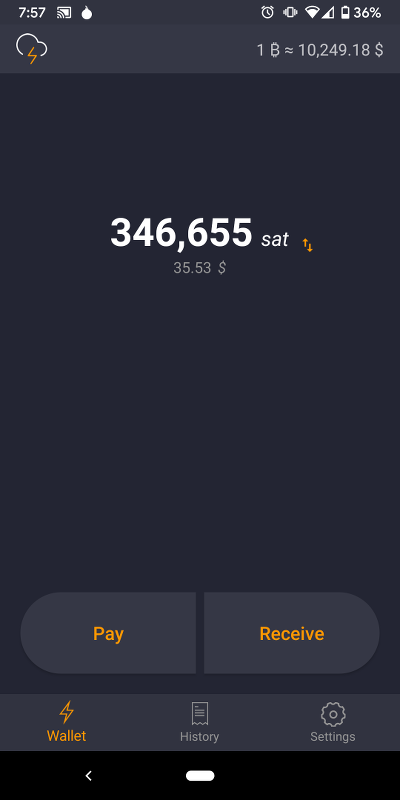
After Zap successfully scans the QR code, Zap will be using your MyNode device's wallet!
← Thunderhub Zeus →