
# Verify or Restore on-chain Lightning funds using BlueWallet
# Cautionary note
Use this method to monitor the on-chain wallet, verify the seed or recover the on-chain funds in case of emergency. DO NOT use the wallet to make transactions while your lightning node is running. It may disrupt your node.
# Step 1: Install Bluewallet
You can install Blue wallet on any of the following operating systems:
- iOS
- MacOS
- Android
Use their website bluewallet.io (opens new window) to find links for the above.
# Step 2: Add new wallet
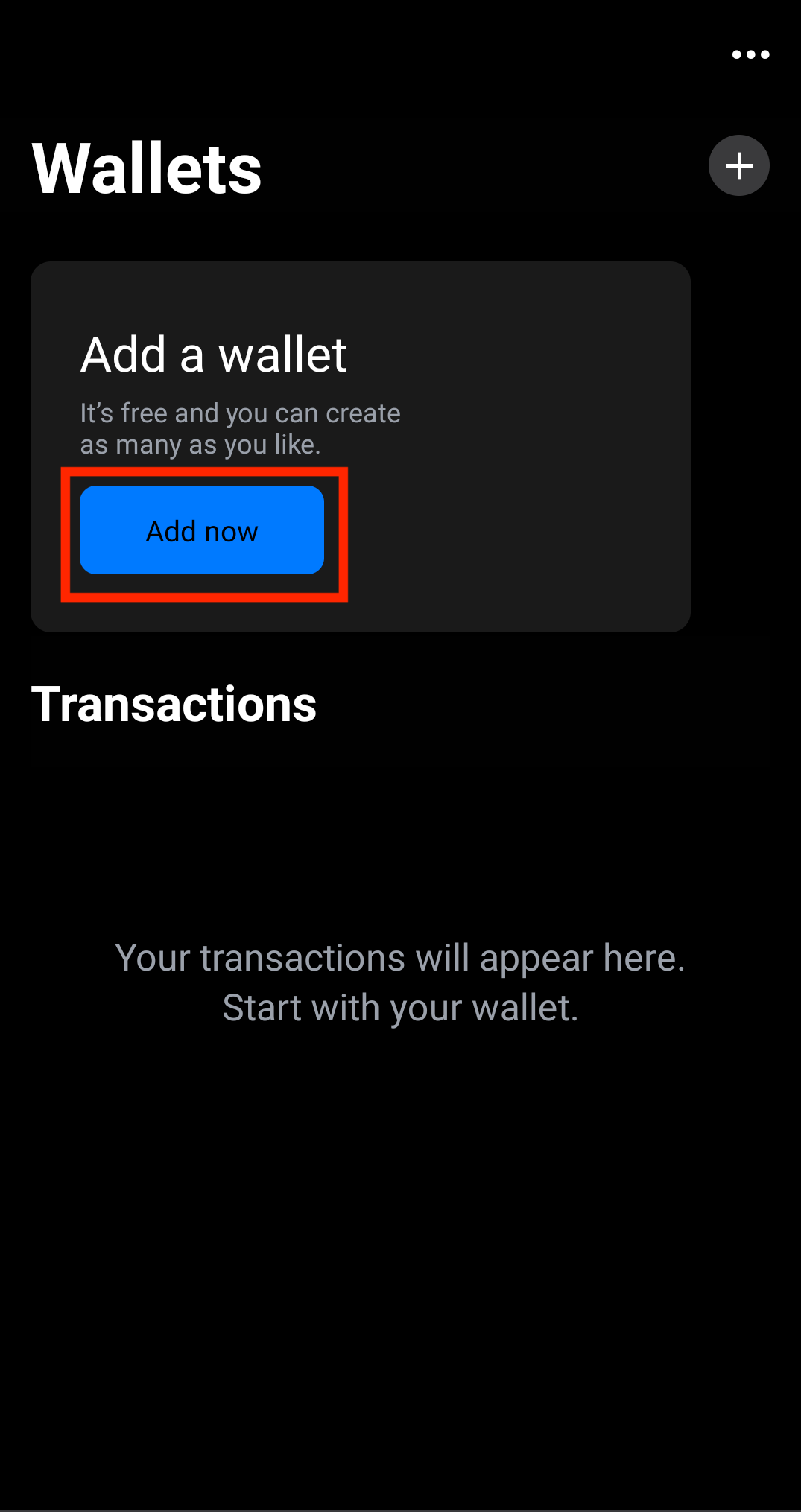
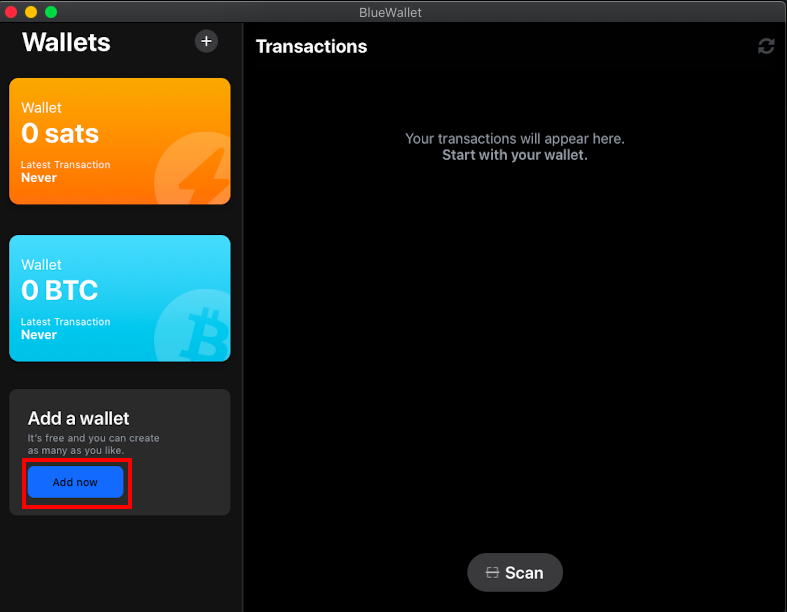
Once the Bluewallet is installed, launch it and find the "Add a wallet" page, like the image shown below. Click on it.
# Step 3: Import wallet
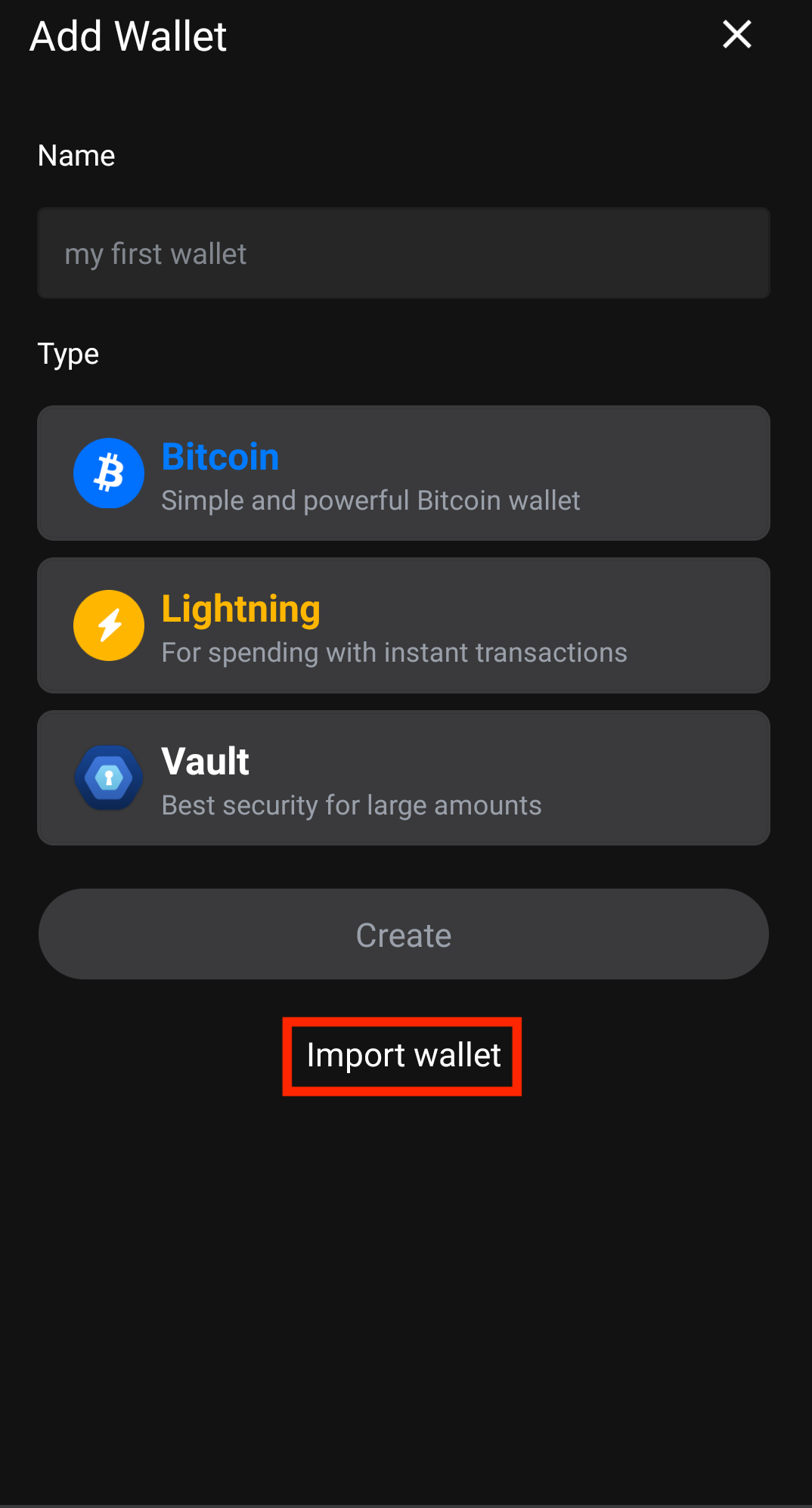
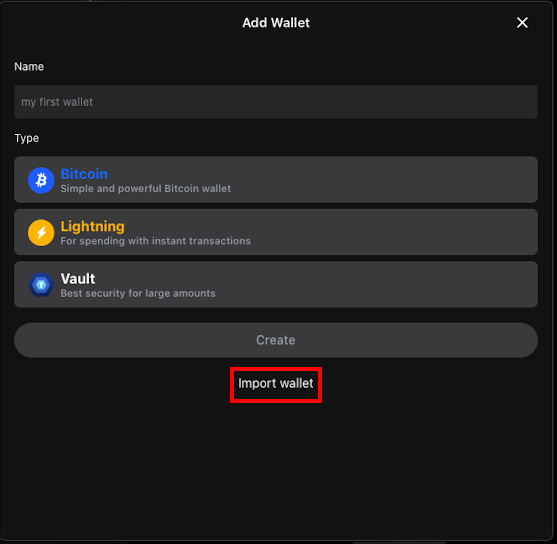
Click on import wallet at the bottom.
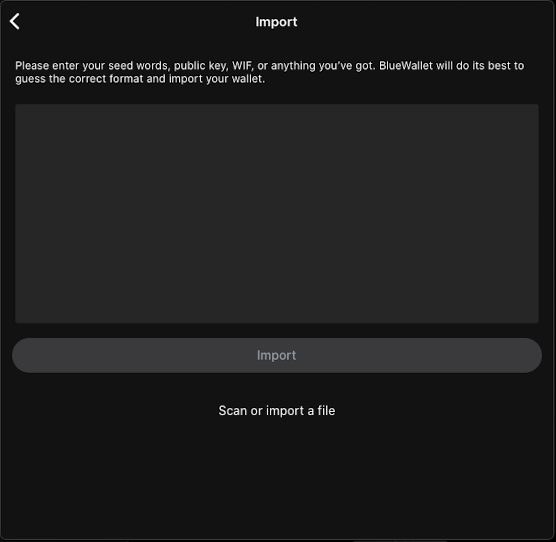
# Step 4: Enter 24 word aezeed seed
Enter the 24 words of your seed in the textbox and click on Import.
# Step 5: View transactions
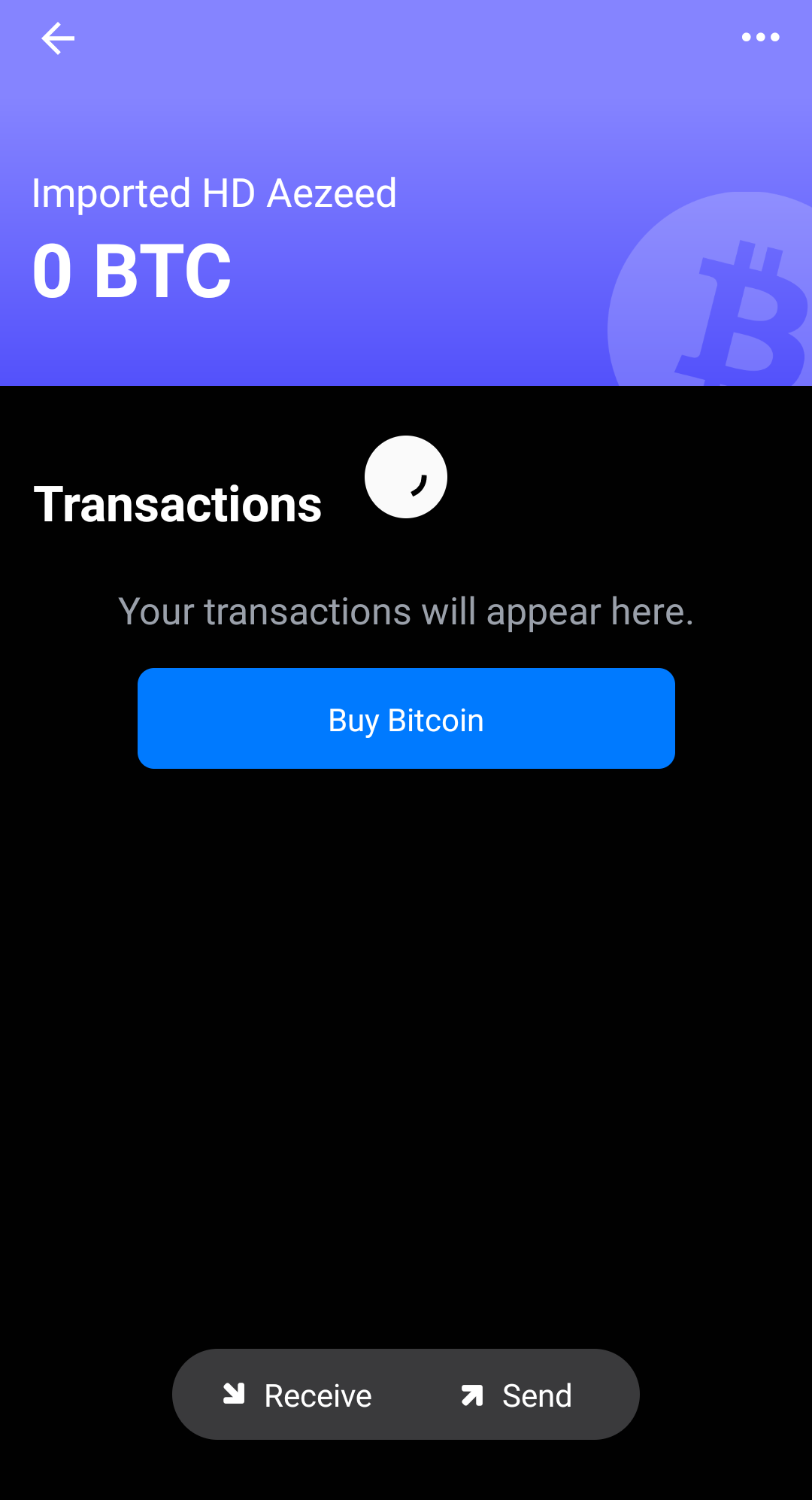
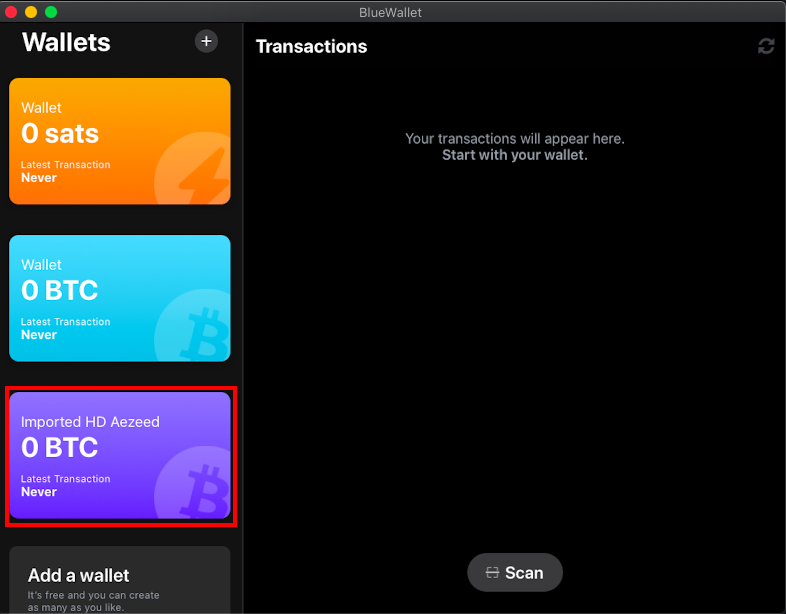
A violet color wallet should appear called "Imported HD Aezeed". Click on it to view transactions. It may take a few minutes to load all transactions.
Note: Bluewallet only scans the first 20 addresses whereas MyNode generates a new address on every reboot, so total funds may appear to be different.