
# Customize App Versions
In some situations, like in the case of contentious forks, you may want to use a specific application version and not upgrade to the one used by MyNode or upgrade to a new release prior to its inclusion in a MyNode release. If that were to happen, MyNode includes a tool to override the application version that is installed.
# Customizing an Application Version
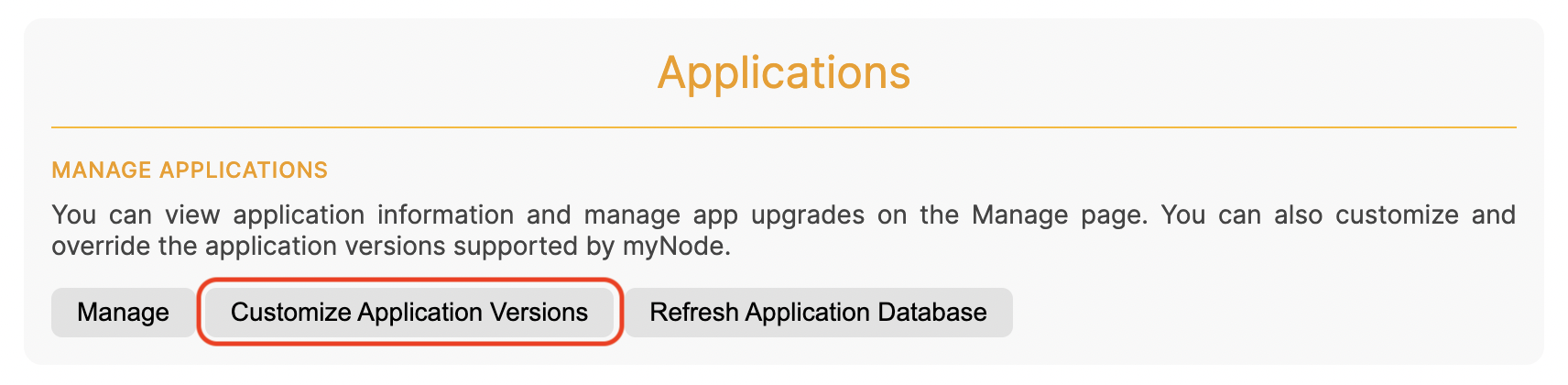
To start customizing an app version, first go to the settings page and click on the 'Customize Application Versions' button. A link it also available on the bottom of the Manage Apps page.
This will open the application customization page which has a table of all applications.
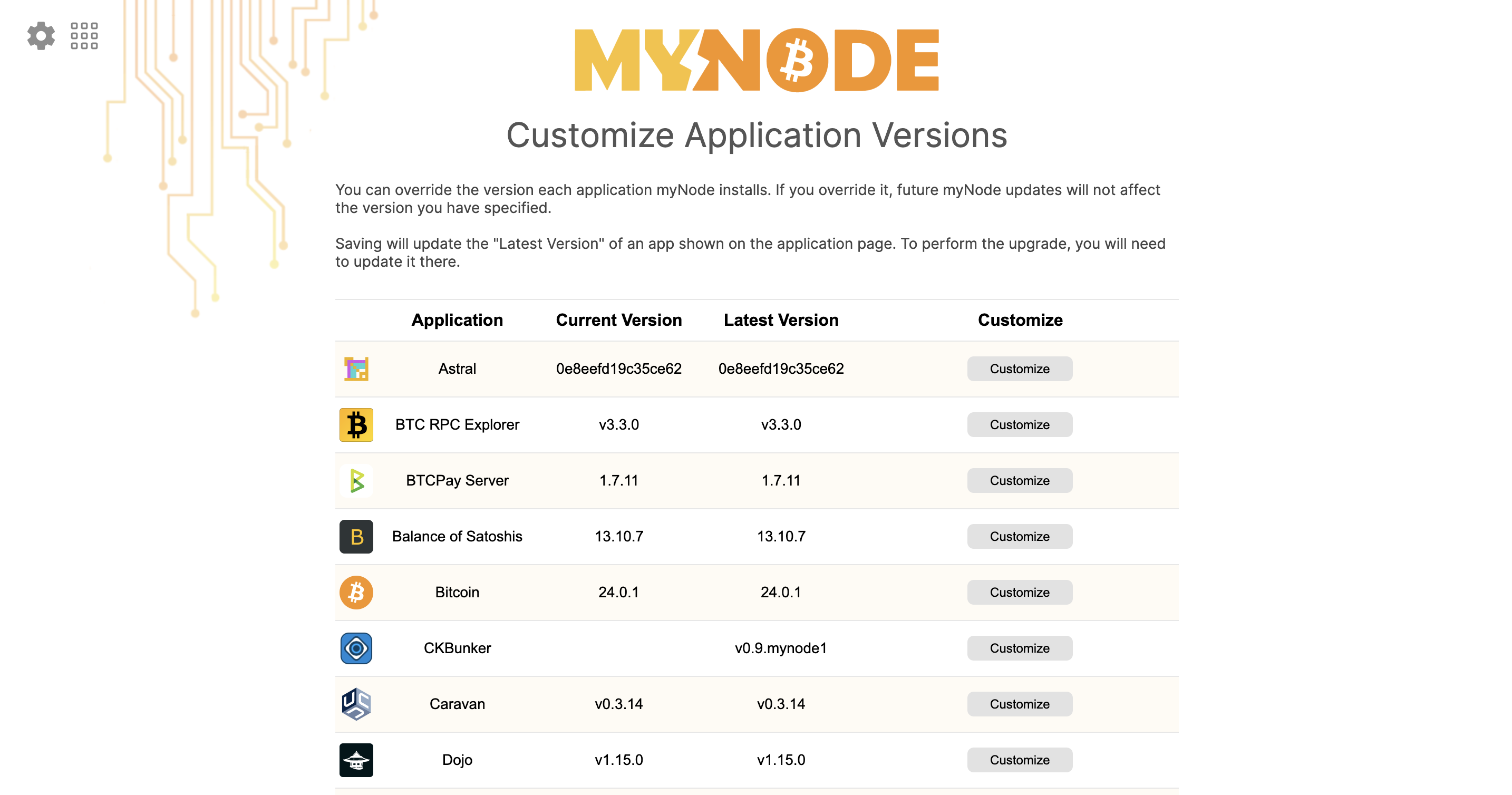
Each app row shows the current version (if installed) and the latest version. To customize the latest version, click the Customize button and text field will appear. You can then enter the custom version and click Save.

Once saved, the application's Latest Version will be updated to the one you entered.

After the custom app has been saved, the app still needs to be upgraded. To perform the upgrade, navigate to the Manage Apps page via the icon in the top left. Once on the Manage Apps page, you will see a pin icon next to the app you customized indicating it has a customized version.

To upgrade the app, click the Upgrade button in the application row. Your device will begin upgrading the application before rebooting.

After rebooting, you can go back to the Manage Apps page and verify the Current Version and Latest Version of the app match and both indicate the custom version you chose.

Congratulations on running a custom application version!