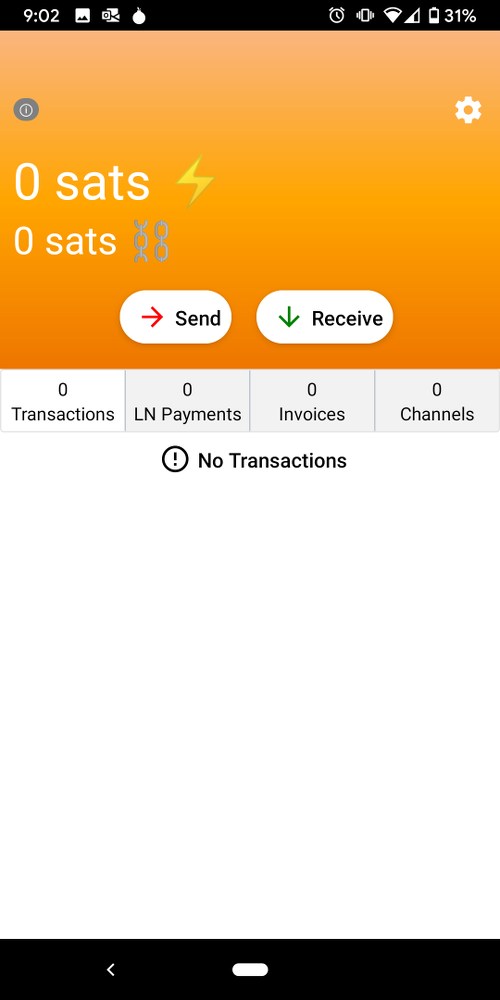
# Using MyNode with Zeus Wallet via Tor
# Enable Tor on your Mobile Device
# Premium Feature
First, enable Tor on your mobile device. Follow the Setup Tor Guide.
# Using Zeus Mobile with MyNode via Tor
First, download the Zeus app to your mobile device.
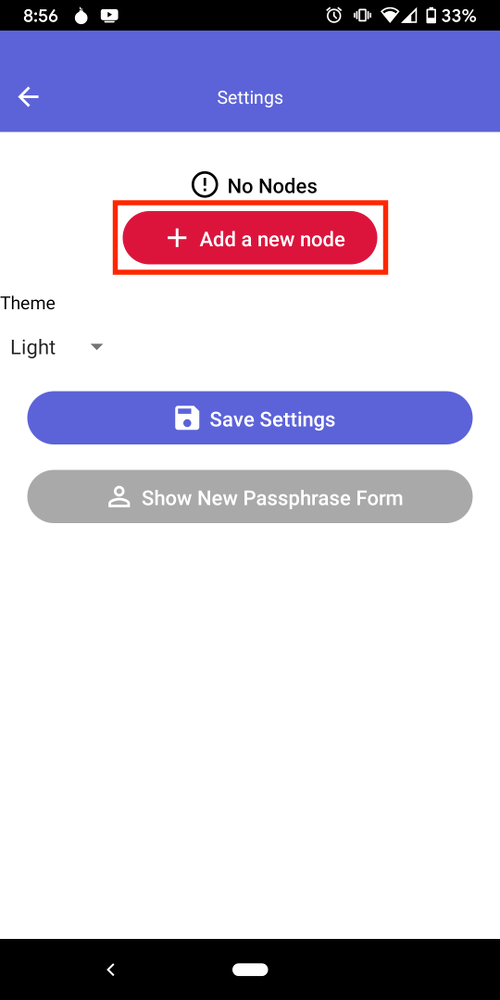
Next open the app, go to settings and tap "Add a new node".
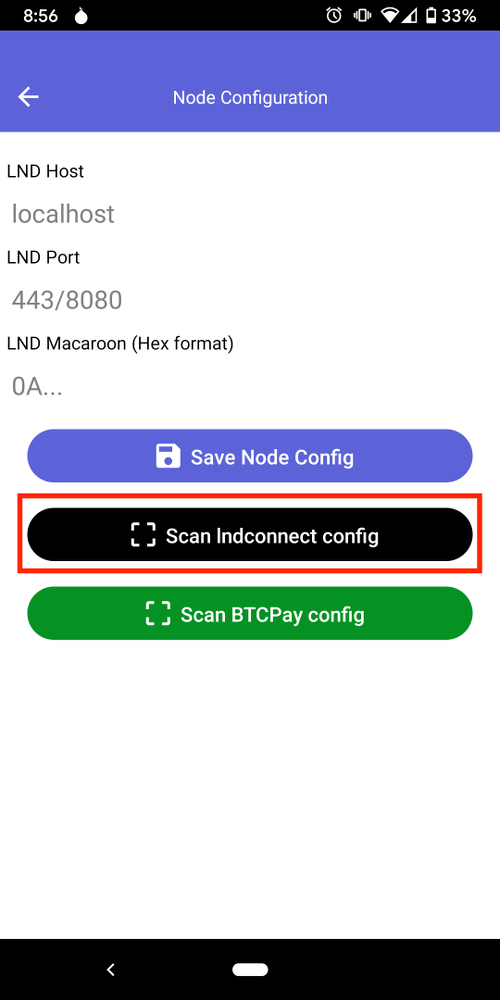
Tap on "Scan lndconnect config".
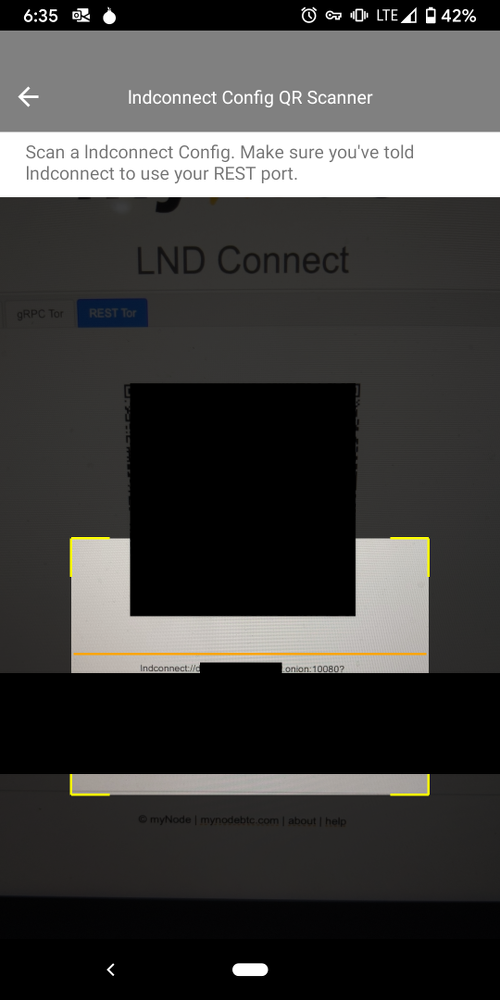
Open the LND Connect page in the MyNode GUI and scan the QR Code from the "REST Tor" tab.
Once the QR code is scanned, click "Save Node Config" and go back to the main app screen. Zeus is now using your MyNode device!